

Find what broke on a Windows PC or server
Search event logs, then check services, drivers, and installed software in the same window.
Troubleshoot a PC or server from its own logs
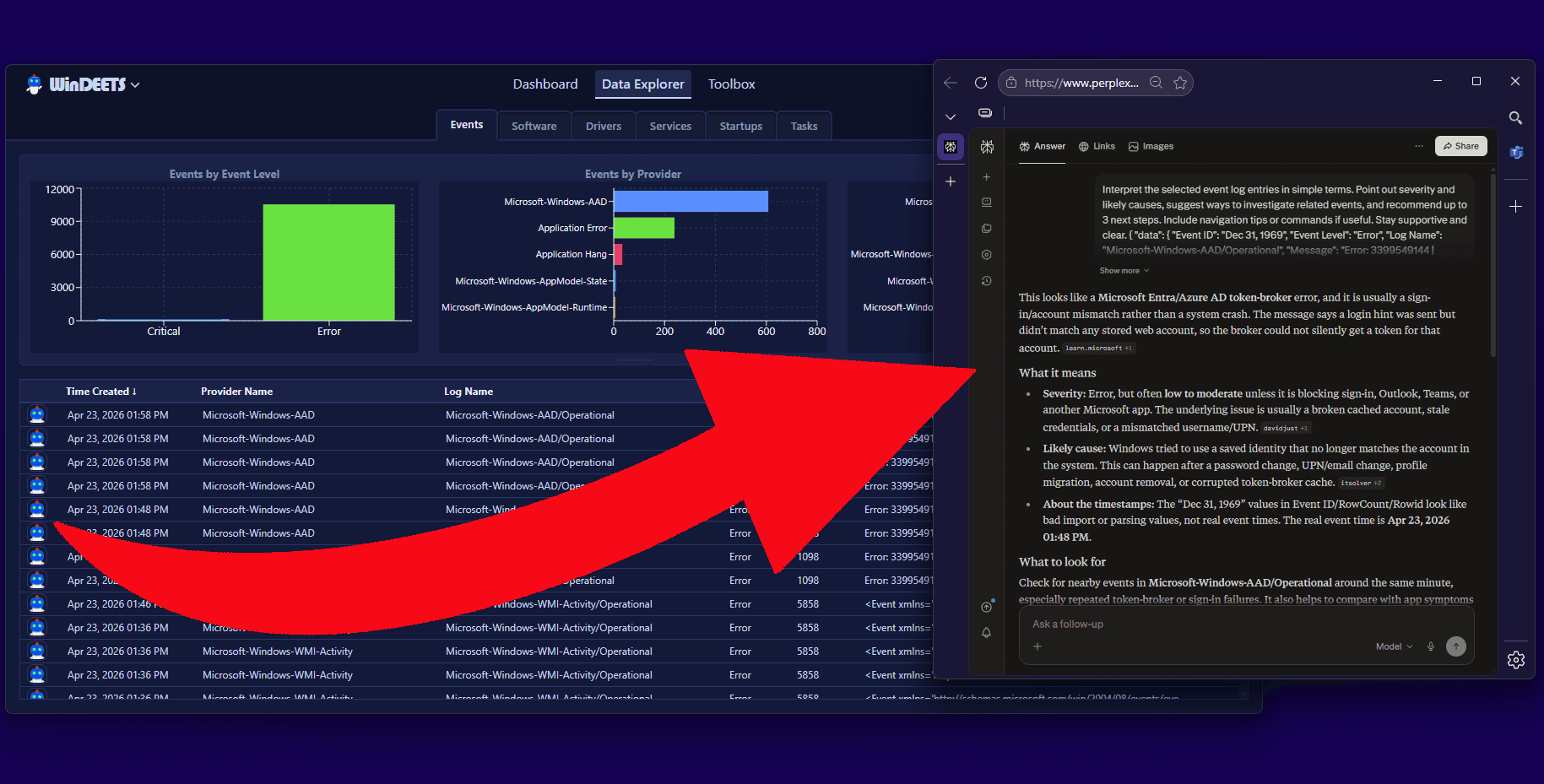
WinDEETS lists event logs, services, drivers, and installed software. Winny explains pasted log text in plain English.
Read your event logs
Filter out routine events, then search the rest across a time range and group related entries.
Inspect services & tasks
Lists services with their startup type, plus scheduled tasks, so you can see what runs and when.
Track hardware & drivers
Lists drivers with their install and update history, so you can see which one changed before the fault.
Monitor installed software
Lists installed programs with their update history, so you can see what changed before the problem started.
Ask Winny to explain a log entry
Paste log text into Winny for a plain-English summary and a short list of next steps.
Open system tools from one place
Open built-in Windows system tools without searching menus or typing commands.
Read your Windows event logs with WinDEETS
What WinDEETS helps you do
From symptom to answer with the Data Explorer and Winny together.
Find the first signal
Check the likely cause
See what depends on it
Audit what changed
Review startup items
Ask Winny for next steps
What WinDEETS reads, sends and needs
- What it reads
- The Windows event logs on the PC it runs on, when you open the Data View, press Refresh or press Load older events. It does not poll in the background.
- What leaves your PC
- No usage statistics or telemetry. Once per launch it fetches a list of search addresses for Winny from windeets.com, and that request carries only a User-Agent. Signing in is optional, and it copies none of your data anywhere.
- What rights it needs
- Your own Windows rights. Reading, flagging and exporting events needs no account. Some logs, such as Security, need administrator rights.
- What it can't do
- It reads and explains. It repairs nothing and changes no Windows setting. It does not run in the background to collect logs for later.
System requirements
Operating system
Windows 11 (build 22000 or later)